Showing posts with label Reviews/Previews. Show all posts

Friday, July 9, 2010

Nokia X6 8GB Mobile Phone

Nokia X6 8GB Mobile Phone

Nokia X6 8GB Mobile Phone Nokia X6 8GB Mobile Phone

Powered by Symbian OS v9.4, and ARM 11 434 MHz processor, the new Nokia X6 8GB Mobile Phone is a power packed smart phone to enlighten the mobile phone world. Set to release soon, the reliable Nokia, designs this phone with a 3.2 inch display screen of 16M colours with TFT Touch screen. Sophisticated and attractive in Azure, Black, Amethyst case colour options, the device features proximity sensor for auto turn-off, accelerometer sensor for auto-rotate, scratch-resistant glass surface.

This speakerphone comes with 3.5mm audio jack, MP3 ring tones and vibration alerts. The device has a huge 8MB storage space to save unlimited entries and fields in its phonebook. It also saves detailed call records, for up 30 days.

With wide connectivity and easy accessibility, this mobile phone promises to be a fully featured package. It supports 2G GSM 850 / 900 / 1800 / 1900 network and 3G HSDPA 900 / 1900 / 2100 network. With GPRS, EDGE, WLAN Wi-Fi, Bluetooth and USB features, data access as well as wired and wireless data transfer is swift and easy. Supported by WAP 2.0/xHTML, HTML browser and RSS feeds the device ensures internet accessibility while on the move. It also features SMS, MMS, Email, Push Email, and IM messaging.

Nokia X6 is a 5MP auto focus camera phone with 2592 x 1944 pixels clarity. Superb photographic quality is supported by Carl Zeiss optics, Dual LED flash, and video light. It features geo-tagging and video recordings too.

With Stereo FM radio with RDS, Games (Spore, Asphalt4, DJ Mix Tour + downloadable), WMV/RV/MP4/3GP player, and MP3/WMA/WAV/RA/AAC/M4A, you have entertainment to make your mood pleasant. The device also includes GPS receiver (Ovi Maps 3.0), Java, Organizer, Photo/video editor, Voice command/dial, TV-out, Flash Lite 3.0, and T9.

122 grams in weight, the Nokia X6 Mobile Phone is 111 x 51 x 13.8 mm in dimensions. Powered by standard Li-Ion 1320 mAh (BL-5J) battery, this stunning communicator offers a stand-by time of up to 420 h (2G/3G) and a talk time of up to 11 h 30 min (2G) and 6 h (3G). Besides, you can enjoy and relax listening to music for up to 35 hrs.

General Information
Brand Nokia
Model Nokia X6 8GB Mobile Phone
Colours Available Azure, Black, Amethyst
Weight 122 grams
Dimensions 111 x 51 x 13.8 mm
Display Features
Display Type TFT, Touch screen
Size 3.2 inch
Memory
Phone Book Memory Unlimited entries
Call Records Memory Yes
Ringtones
Type of Ringtones MP3 ring tones
Vibration Mode Yes
Connectivity & Internet Features
USB Yes
Bluetooth Yes
GPRS Yes
EDGE Yes
WLAN Yes
WAP Yes
Features
Messaging SMS, MMS, Email, Push Email, and IM
Games Yes
Browser WAP 2.0/xHTML, HTML
Camera 5MP
Camera Resolution 2592 x 1944 pixels
Other supportive features Stereo FM radio with RDS, Games WMV/RV/MP4/3GP player, and MP3/WMA/WAV/RA/AAC/M4A, GPS receiver (Ovi Maps 3.0), Java, Organizer, Photo/video editor, Voice command/dial, TV-out, Flash Lite 3.0, and T9
Battery Information
Battery Type Li-Ion 1320 mAh (BL-5J)
Battery Life in Stand-by Mode Up to 420 h (2G/3G)
Battery Life in Talk Time Up to 11 h 30 min (2G) and 6 h (3G)

Tuesday, March 9, 2010

RotateMe Review

RotateMe Review


RotateMe is the first of many applications in development by the French author Samir; others include his Nokmote and ShutUp. RotateMe has been in development for the last few months and through the betas it has slowly improved, bugs
have been fixed and new features have been added. The current beta (beta 7, for donators only) has reached the end of its development stage and will soon be submitted to Symbian for public signing, but if you can’t wait, you can download the publicly available (unsigned) beta 5 off Samir’s home page. See also my tutorial for instructions on signing apps.

Features include the iPhone-like auto rotate (N95 and other accelerometer-equipped phones only) with a hotkey option for other phones. An easy to use interface allows users to
  • Set Sensitivity
  • Change Reactivity
  • Enable/Disable Auto Start
  • Set the Inactivity Delay
  • Adjust the Priority
  • Activate the System App setting
  • Enable/Disable Hidden App, to hide RotateMe from the task list
When using RotateMe for the first time, the app successfully loads itself for system start-up, as set from the main settings menu. Also, the application is successfully hidden from the system task manager while running. The phone successfully rotates from landscape to portrait when the N95 is fully open (portrait) mode - and when the phone itself is in landscape mode it also continues to function without misbehaving. With the auto shutoff when the phone’s keypad is locked, little difference in battery performance is noticed, one major bug fixed from previous betas.


When using RotateMe in applications, the occasional bug appears. When using it while creating a new text message, you can occasionally lose the last character you wrote if you rotate the screen in the middle of the writing the text. The N95's accelerometer originally used to determine if the camera was in landscape or portrait mode when taking a picture, this no longer functions successfully with RotateMe active, meaning that pictures you take in landscape mode are occasionally saved in portrait aspect, this can be irritating, especially if you use your phone's camera regularly.


One other thing I have noticed while using it is that if you have rotated the screen to landscape mode, then open the phone into natural portrait mode, the phone automatically rotates the screen back to the portrait mode. This can be annoying because it means that in order to get the phone back to landscape mode, you have to turn the phone back to its original orientation and then rotate it back to landscape in order to get it back to landscape operation.


These are all minor bugs and should (hopefully) be fixed in the next update.


The inactivity delay function works well. If the phone is inactive for the set amount of time (30, 60, 90 or 120 seconds) then autorotation is successfully disabled. This is good to have and prevents major battery loss. It also then gets enabled when you start using the phone again.


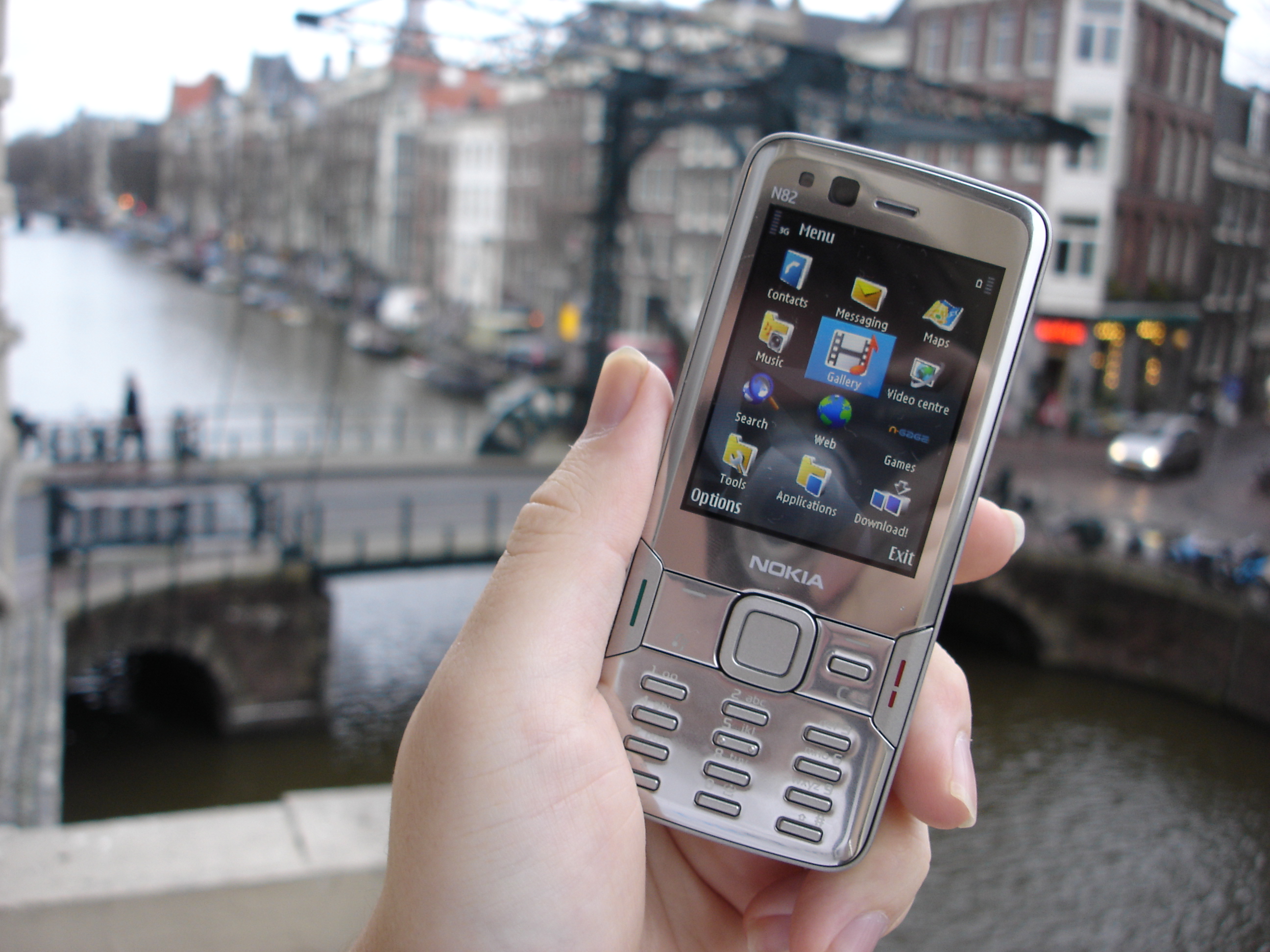
Nokia N82 - part 2 - GPS, Applications and Performance

Nokia N82 - part 2 - GPS, Applications and Performance


GPS and Nokia Maps

The N82 is the second Nseries model after the N95 to get a built in GPS. Nokia have also considerably improved the implementation since the N95 launch by adding assisted GPS. The N82 also benefits from moving the GPS aerial from the bottom of the device to the top. The end result is excellent performance with lock on times from a cold start around 30-40 seconds in most cases and just a handful of seconds to reacquire the signal from a soft start. The phone also holds onto GPS signals much more reliably, be it in urban canyons or heavily vegetated areas.
The main built in application to take advantage of the GPS is Nokia Maps. This offers free mapping for 150 countries, with around 40 of these also offering routing. Maps can either be downloaded over the air or preloaded using Nokia Maps Loader. The preloading option is very worthwhile if you are roaming or do not have a flat rate data package as the size of downloads can quickly add up. A point of information (POI) database, divided into various categories, comes with the maps. The quality of the POIs varies by area; large urban areas are usually reasonably well catered for but do not expect comprehensive coverage. The search function is good with support for address (including postcode) and keyword based searches, and 'nearby' (nearest POI from a specified category). Custom locations (e.g. your house) can be saved as Landmarks and then used in routing and navigation.

Basic route planning is free, but turn by turn voice navigation is a premium feature, which you have to buy as a subscription service from within the application. You choose a specific area (e.g. UK and Ireland) and a time frame and the cost is set accordingly. For the UK and Ireland the costs are £4.50 (one week), £5.73 (one month), £43.06 (one year) and £50.24 (three years). For all of Western Europe, the same time frames are £6.00, £7.17, £64.59 and £71.77. The exact costs will vary by country and by operator. You can pay by credit card or, for charges under £10, by premium SMS. The pricing scheme makes a lot of sense and is especially attractive for those requiring only periodic usage. Navigation subscriptions are not transferable (to a new IMEI) so if you think you may replace your phone in the future think carefully before signing up for the longer periods.
Other premium features include guides provided by third parties such as Berlitz. I have tried a couple of these and the quality is very mixed; some are so poor they constitute a total rip off, but there's no way to distinguish between the good and the bad. You are probably better off avoiding the guides for now.


Nokia Maps has evolved considerably since its release early in 2007. It is now generally faster in operation and the user interface (information displayed on screen, menu layout) and feature set (more powerful search, bigger POI database) has been improved. Nokia Map Loader has also received similar updates and both applications feel a lot more polished that at their initial launch. However the most welcome improvement has been better navigation routing. In my experience the earlier version did not always plan the optimal route. Clearly at the local level the user will always know best - we all use local knowledge and shortcuts which are difficult to codify into a routing algorithm. The newer versions of Nokia Maps have definitely improved, more often then not they now get closer to giving the natural route. I'm now happy to rely on the software when in an unfamiliar area, whereas previously I still kept one eye on the paper map.

Web and Multimedia software

The N82 has the excellent S60 Web application, which is now relatively mature. With its intelligent column sizing, visual history, overview mode and minimap, browsing sites intended for the PC is easy. The limitations of the browser are more about the screen resolution (e.g. drop down menus not fitting on the screen) and softkey controls (as opposed to touch) than any application problems. In practical day to day usage there is the occasional annoyance of the N82 being recognised as a mobile device and presented with a stripped down version of a site. However this is not really the fault of the browser, even if some kind of user agent masking option would help here. The RSS functionality works fine though the lack of subscription import or export limits the utility. In due course the N82 is likely to receive a firmware update that adds Flash Lite 3 and Web Run Time (WRT) to the device (similar to the recent N95 8GB firmware update). This will represent a very major upgrade of Web's capabilities. It will enable Flash video (e.g. YouTube) to be viewed in the browser and usher in a new type of application - WRT widgets.


The N82 has a dedicated Music folder, in which you'll find the Music player, Radio, Podcasting and Music store applications. The Music player is little changed from its earlier versions with the hierarchical music library, support for album art, playlist management and integration into the Idle screen. Podcasts are now divided into their own hierarchy and can be paused and resumed at the same location at a later date. The podcasting application lets you find new podcasts (or enter them manually), set up subscriptions and, if required, schedule automatic downloads. There's no PC companion, but this really isn't required. Podcast downloads can be large, so unless you want have a flat rate data tariff you should stick to WiFi. Podcasting is one area where the N82 (and N95 etc.) really outshine any competition - there's nothing to match it/them on any other portable audio device or mobile phone.


The Music store application is a link to the the Nokia Music Store from where you can browse and buy music on your phone. The store is currently only available in the UK, but other countries should get their own versions shortly. Browsing the store is easy and there's a large (and increasing) music catalog available with 30 seconds samples available for all music. The downloaded music, priced at 80p per track (£8 per album), is protected by the Windows Media Janus DRM. On starting a download you'll first get the appropriate license file before the WMA music download starts. There are some nice touches to the download experience, for example new purchases are automatically added to the music library without any user intervention or annoying delays.
There's also a PC version of the music store, although this can only be accessed through Internet Explorer, as an extra ActiveX add on is required to manage the music downloads. Windows Media Player 11 is used for music management and transferring music to and from the device. It allows for two way syncs (music purchased on the phone is automatically copied to the PC) and has comprehensive, if slightly fiddly, sync options. Sync speed is a bit slow, but this isn't really a problem after you have performed the first sync. Windows Media Player 11 is not without its faults and the music management does not feel as refined as iTunes. Nokia is working on its own music management software which should improve matters, but this is not expected to be available until later in the year.

Overall, Nokia Music Store is an impressively slick system and is easy to use. Nokia has faced some criticism for its use of DRM (especially with the trend for DRM-free music) and lack of unique features. However it has to operate within the realities of the current music landscape and, with that in mind, the current system is excellent. Many users will 'side load' from their CD collection and a number will continue to buy CDs because of their flexibility. It is to Nokia's credit that this is made just as easy and seamless as buying music from Nokia's own store. I do think that the instant nature and single track purchase of the Nokia Music Store should attract its own set of users - you only need to look at the iTunes ecosystem to realise that digital music downloads are popular. iPods may currently have the digital music high ground, but the convergence trend has long pointed towards their functionality being subsumed into phones. With the Nokia Music Store in place, Nseries phones are in a realistic position to replace the complete iTunes experience. It may not be perfect, but for many it will be good enough and we can expect to see a lot of activity in this area in the next year.
Video is handled by the duo of Video Center and RealPlayer. The latter is the video playback application and supports both Real video and MP4 formats (including both H.263 and H.264). With the right formats and resolution, you can play video smoothly in full screen with excellent picture and audio quality. Video Manager is a video downloading companion program (technically it uses RSS feeds and acts in the same ways as the podcasting program). Video manager arrives with some default Nokia content but a variety of extra sources can be added. The selection is relatively limited and most people will be looking to get extra video from elsewhere. Getting video to mobile devices is generally far more cumbersome than music transfers. There are different formats, bitrates and resolutions to contend with, which means it may not always be possible to do a direct copy. The N82 also faces these problems too - Nokia provides a PC program to help with conversion of existing files. However a bigger problem is a lack of source material. Taking video off a DVD is much more cumbersome than ripping a CD (because of high resolutions and bitrates and because of complex DRM-circumvention) and digital downloads are in their infancy. The N82 is a good video playback device (even the physical screen limitations can be overcome with TV-Out), but its potential is some what limited by a lack of readily available video material.


As with other Nseries devices, there is support for the UPnP standard for interacting with other media devices over a network (WiFi) via the Home network application. UPnP devices fall into three categories: servers (store media), renderers (play media) and control points (control a renderer by telling it to play something from a server). Earlier Nseries devices were only UPnP severs and control points. The N82 (and N95 8GB and N95 with firmware v20+) can now also act as a UPnP renderer, which means you can send media to your phone from a UPnP server. The technology is impressive (for example I streamed music to the N82 from my PC using the UPnP server built into Windows Media Player 11 and then used TV Out to play it through a HiFi), but it can be fiddly to set up and use. As a result I'm not sure how much use this will get from mainstream users; nonetheless, it is good to see Nokia pushing the boundaries.


TV Out, also built into the N82 (the included cable plugs into the 3.5 mm audio jack), is likely to get more usage. This is ideal for watching videos or showing photos captured on the phone. RealPlayer (videos) and Gallery (when displaying a photo) will send a VGA resolution signal via TV Out, though whether you see it as such depends on your TV. We covered some of the possibilities for TV out in a series of feature article on AAS which you can view here. In day to day usage, I found myself using the cable for high quality audio out (connecting to a HiFi) as much as video out, but I'm sure your usage pattern will vary.
The N82's multimedia software suite is undoubtedly comprehensive. However, Nokia could improve things by making it easier for users to take advantage of some of its capabilities. The component features do not always feel like they fit together. Nowhere is this more obvious than sync - I would personally prefer a unified sync process where I could control all copying to and from the device. Moreover it sometimes feels like too many of the features have been left for users to find and take advantage of themselves; the N82 has a lot of untapped potential. I would draw a contrast with the iPhone, which many would deem a better multimedia experience despite the fact it has nowhere near the technical capabilities of the N82.

N-Gage

The N82 is an N-Gage compatible handset, of course, and there are two demo games preloaded (Fifa and Asphalt) which Krisse looked at earlier on All About N-Gage on the N81. The N82's spongy d-pad may not offer the best experience for gamers nor are there any extra keys, such as on the N81, to optimise it for landscape usage. However, many N-Gage games do not require extensive button bashing. Thus the gaming experience will likely depend on the sort of games you play on the device. In this light it is not really possible to draw any conclusive judgements until N-Gage formally activates. Moreover, for the majority of people, N-Gage will be a nice extra rather than a reason to buy one Nokia device over another. If your primary interest is N-Gage then you are probably better off with the N81. The one caveat here is that the N82, like the N95, does have accelerated 3D graphics (the N81 does not) which may be used in future N-Gage titles.


Multimedia menu and UI complexity

The N82 has the newest version of the multimedia menu (first seen in the Nokia N95 8GB and N81). This menu, accessible via the multimedia key, offers a series of tiles in a carousel fashion (navigated via the left and right directional controls). Each tile represents a certain application (experience) and offers a vertical menu of shortcuts to specific functions. For example the music tile offers shortcuts to the Now playing screen, the Music menu (the list of available music), the Podcast menu, the Playlist menu and a Shuffle all songs option. There are other tiles for Contacts (list of user selectable contacts), Internet (first five Web bookmarks), Maps (last five Maps locations), Games (N-Gage links), Gallery (last captured image, slide show and albums) and Videos (last captured). Taken together, these tiles allow easy access to a large proportion of the most commonly used features of the phone. The default first shown tile is Gallery which seems a little strange on the N82, given the dedicated Gallery shortcut key on the side of the device. Fortunately the tiles can be rearranged in any order, but beyond this there is little scope for customisation. It would be helpful to be able to remove some tiles altogether and messaging and application tiles (for third party applications) would be welcome additions. No doubt the multimedia menu will continue to evolve as additional Nseries devices are released this year.


For some, the multimedia key and associated carousel menu will be immediately much used, for it does provide very easy access to many of the key features of the phone. Longer term S60 users may, initially, find it less useful as they will be more used to accessing functions via the traditional application menu. However, learning to take advantage of the multimedia menu is worthwhile since it does give faster access to some functions. For example, music playback can be as little as three keypresses away via the multimedia menu versus five for an application menu route.
You can also argue that it is also a more intuitive experience and that breaking down phone functions into discrete experiences and tasks (with the key task at the top of each experience tile) more closely matches how people think when carrying out a task. This contrasts with the more regimented and less intuitive application menu approach ("I want to do this, so I should use this application").
On the other hand, you can argue that it adds an extra layer of confusion because it gives the user yet another way to launch applications and access functions. With the application screen, multimedia menu and active idle screen there are now three distinct ways (UI methodologies) in which you can access applications. The multimedia menu in particular feels disconnected from the other two. Perhaps the very need for the multimedia menu represents a failing of the original UI? Wouldn't it be better to just have one method that was straight forward and easy to use for everyone (e.g. iPhone)? However, this is an over simplification, phones like the N82 are complex, with an ever increasing array of functionality. Presenting this complexity in a UI is very much more difficult than presenting a simple set of functionality. This UI conundrum is one of the curses of convergence.
I think the multiple UI methodologies offer a good compromise because it offers flexibility to the user. The standard S60 UI is there, but the multimedia menu offers an opportunity to provide a more experience driven-alternative. There is a price to be paid in terms of the initial learning curve and immediate intuitiveness compared to simpler devices, but this must be measured against the much richer functionality available in the N82. There is plenty of room for improvement, but, given the diversity of its functionality, the N82 still remains accessible to the large majority of its target audience.

Other software, screen rotation and performance

Outside of its multimedia prowess, the N82 has the same S60 application suite as other phones. Contacts, Messaging and Calendar reassure with their familiarity, as do the usual companion applications. At one time, such applications were the main stay of smartphones and PDAs, but today a reasonable address book, calendar and messaging suite are a near universal constant in mobile phones (generally). S60 provides a good experience in this area and while some power users may clamour for more, the average consumer will find that what is on offer is more than good enough.
However there is still room for the companion applications to impress. One of these is Nokia's Search application, which was first publicly released last year, and has since gone through a number of iterations. The latest of these is present on the N82 and is accessed via an Active Idle shortcut or as a distinct application. It combines Internet, local and device search into a single application. The Internet and local search uses different search providers in different markets. In the UK you can use Yahoo or Microsoft Live. Unfortunately, at the time of writing there was no local search included for the UK. The on device search provides search across all the different types of content on the device. The application provides a more advanced search than that available within the Contacts and Messaging application, letting you track down important information.


Another application that rose in prominence over the last year was Download!. This enables Nokia to provide extra applications and content for download directly on the phone. Many of these are provided by third parties and are charged for, but Nokia also provides a number of its own add-on applications for free. It is well worth checking to see what is available on a regular basis and Nokia often uses it as a channel to distribute new applications, such as Internet Radio. It also goes some way to educating new users that the phone can accept new applications and, while it does not present a universal solution to the discovery and distribution problems facing mobile software developers, it is a good start.


There are plenty of other applications in the S60 offering and, of course, installable third party applications can add to the number. On the N82, by default, the majority of these are hidden away in the Tools or Applications Folders. This makes sense as most are only going to be used occasionally or will be automatically activated by another application (such as the excellent Quickoffice when dealing with email attachments). This goes some way to stopping an avalanche of software icons (57 out of the box, by my count) overwhelming new users. It is possible to see this many applications as software bloat, but perhaps it is fairer to see it as a symptom of flexible functionality? Once you get past the common basics, everyone has a different set of usage scenarios. With the ability to install new applications and reorder folders and application placement in the launcher at will, each person can customise the phone to their usage patterns.
A UI refinement which gets its debut on the N82 is automatic screen rotation. This allows a switch from portrait to landscape mode when you physically turn the device anticlockwise. This uses the N82's accelerometer to measure the current orientation of the device relative to the ground. The accelerometer is also used to automatically rotate pictures from the camera at capture time (as on the N95). Switching the UI from portrait to landscape is near instantaneous in almost all situations. At first it may seem like something of a gimmick, but after a while its benefits become apparent. Some applications are more suited to use in landscape mode. Web and the viewing of landscape photos in Gallery are obvious examples, but this also applies more generally when viewing larger amounts of text on screen. For example you can see more text when using Messaging in landscape mode; this reduces the amount of scrolling, which can be particularly beneficial when reading email. Rotating the device is a very natural action and I hope we see automatic screen rotation become a staple feature of Nseries phones.


For longer term S60 users, what will really impress about the N82 is the speed of the UI and general performance. Navigating around the device is quick, with little or no lag time between screens. Most applications open in the blink of an eye and even the more demanding applications only take a few seconds. If an application is already open then switching is instant, and there are real benefits to be had from multi tasking by leaving applications running in the background. This is made possible because the N82, like the N95 8GB and N81, boasts more RAM that earlier S60 devices and consequently it is technically possible (if unlikely) to open every onboard application at the same time. The N82 remains nippy even with the heavyweights of Web, Gallery and Maps running simultaneously - a real testament to the architecture in the underlying software platform (including Symbian OS itself). This performance is also noticeable elsewhere, thumbnail creation and image browsing in Gallery is much improved over first generation S60 3rd Edition devices and 'out of memory' errors in Web have gone the way of the Dodo.
The N82 benefits, in maturity and stability terms, from being at the end of a line of S60 3rd Edition Feature Pack 1 devices. S60 3rd Edition Feature Pack 2 devices are due out later in the year, but the major software additions (outside the previously mentioned WRT and Flash Lite 3) are relatively small. S60 does still have some strange minor omissions, and there are a few areas where it could learn from Series 40, as was commented on in a recent AAS podcast. Overall, though, the S60 software suite still manages to impress most of the time and the ever increasing number of third party software solutions can fill in niche gaps, add new functionality or provide a replacement for those looking for something more.
During the course of writing this review the first firmware update for the N82 was made available. There were no major additions (that will likely come later), but there was a first for Nseries, support for user data preservation (UDP). UDP means that your data and installed applications are preserved through a firmware update. Previously firmware updates would wipe the internal drive clean (and thus delete user data). UDP worked well for me and its a very welcome feature, but I would recommend you continue the backup regime if only as a safeguard.
Conclusion

Outside its Nseries stablemates, the N82 has little competition. Nowhere else do you find the marriage of an outstanding camera, good multimedia playback features, integrated GPS and a flexible open software platform. As we've highlighted in the review above, it is not without its problems and annoyances. A more intriguing issue is that the N82 may not, despite its technical and feature prowess, stand out all that much from its most recent Nseries siblings. The glory of the 'flagship device' goes to the N95 8GB with its bigger screen and because of this it is all too easy to forget the N82. Perhaps a comparison with the last Nseries candybar, the N73, is more informative. Here we can see just how quickly Nokia's Nseries lineup has evolved. Remember the N73 was a top of the line handset just 18 months ago (it was launched on April 25th 2006) and is one of the Nseries best sellers. The N82 justifiably faces some criticism for its keypad, but many would agree it improves on the N73's cramped keypad and joystick. The N82's feature set and software is a generation beyond the N73. In this light it is easier to see the N82 for what it truly is - an outstanding handset.
Inevitably, the N82 is directly compared to the N95 8GB and, among power users (yup, that's me - Ed!), the N95 8GB usually comes off best. If the N95 family did not exist, the N82 would be held up as the ultimate handset. However this rather misses the point, the N82 has complementary market positioning to the N95 8GB and it appeals to a more style-conscious market segment. While some consumers are only concerned about getting the best possible mobile experience, others marry this requirement to a desire to have their phones represent part of the style they project to the world. This means that the N82 may not be the first choice for a typical AAS reader, but I suspect it may have broader appeal in the wider market.

Nokia E90 vs Nokia N810: Part 1 - Hardware & Communications

Nokia E90 vs Nokia N810: Part 1 - Hardware & Communications


Nokia E90 vs


Nokia N810:

Part 1 - Hardware

and Communications

The Smartphone

vs The Tablet

Perhaps by pure coincidence, Nokia has recently released two devices with superficially similar specifications, the Nokia E90 and Nokia N810. They both run multitasking operating systems, they both have PC-style web browsers, they both have large bright screens, they both have large built-in QWERTY keyboards and they both have built-in GPS.
However, this isn't the most obvious comparison to make, as the N810 is an "internet tablet" without direct access to the mobile phone network, while the E90 is a smartphone that can connect to just about anything. They've been developed by utterly separate units at Nokia, with completely different design principles, interfaces and operating systems. But that contrast is what makes the comparison potentially very interesting, and that's why we're doing these articles.

To start this series, let's have a very quick look at how they shape up physically, and then look at their communications abilities in a bit more depth.


Hardware


Physically the N810 and E90 look like chalk and cheese until you open them up and then the similarity becomes apparent. Both devices feel very similar to hold when opened, and you can operate them both in a very similar two-thumbed way.

The keyboard keys are a fairly similar size. The N810's keys are perhaps a bit bigger, but the E90 has more keys. The N810 is more satisfying to type on as the keys are clickier, so you feel it more when you press something. Comparisons of the d-pads give similar results, with the N810's being a bit bigger than the E90's internal d-pad, and with a nicer and deeper click when selecting a direction.

The devices screens are the same width physically but the N810's is about a fifth taller. Resolutions are also similar, with the E90 having 800x352 pixes and the N810 clocking up an even more impressive 800x480 pixels. Both screens are very clear and bright, which makes small text highly readable.

The N810's slider feels solid, it's not loose at all. The E90's fold also feels fairly sold but is a bit confusing as it isn't easy to position it in half-way mode, and feels like a 3D puzzle at times.

The N810 has a built-in stand with a range of positions, and the E90 screen can also stand on its own thanks to the weight of the keyboard.


Nokia E90 on the left, Nokia N810 on the right.
Communications


Not only can the E90 work like a normal mobile phone, if you close it it even looks exactly like a normal phone, and you hold it just like a normal phone too. The E90's form factor does an effective job of giving us the best of both worlds, with its huge screen PDA when unfolded and its normal-shaped telephone when folded.

However, the N810 wasn't designed as a completely standalone device. It uses the so-called "two box" model, where you use the tablet for internet services and perhaps multimedia, while a separate Bluetooth phone lets you do calls and texts. Like all Nokia's internet tablets, the N810 can connect to the internet not just through Wi-fi but also through any phone that supports the Bluetooth DUN profile, so it can be used on the move just like the E90. Despite its more cumbersome nature, there are many possible advantages in the two-box method, and
these have been discussed at length in an earlier AAS article about Semi-Convergence.


Wi-fi and Bluetooth

The N810 seemed to be much better than the E90 at picking up Wi-fi signals, and consistently found more networks than the E90.

The E90 and N810 can be set to continually search for Wi-fi signals and connect to them automatically if possible. The N810 can also be set to automatically connect through your phone through Bluetooth, and it has a third mode (probably the most useful) where it tries to connect to Wi-fi if possible, but defaults to connecting through your phone if it's the only option.

As well as connecting to phones, the N810 can simultaneously also connect to Bluetooth keyboards and headsets. The E90 can also connect to keyboards and headsets, and has a wider range of headset profiles including A2DP stereo sound.


E90 in its "normal phone" mode, N810 on Skype's keypad section.


Internet Telephony

Both the E90 and N810 support VOIP services which allow free internet calls and cheap calls to landlines and mobile phone.

The E90 requires you to either install a third party VOIP application or enter the required SIP settings manually, which is quite frankly a real pain. If your phone network operator offers VOIP you may be able to get the settings from them automatically, and businesses would certainly have support staff to set up VOIP.

Although the N810 can use SIP settings just like the E90, there's a much much easier option which is doing a far better job of bringing VOIP to the masses: a full, free, official, easy-to-use Skype client which works on all types of connections including Wi-fi and phone networks (you can even use it on slow 2G phone networks if you can bear the lower sound quality). There's no need to fiddle around with any settings at all, you just install the Skype client, enter or register a username and password, and it works, just like on a PC. As well as providing free Skype-to-Skype calls, it can effectively turn the tablet into a phone if you use the optional pay-for SkypeIn and SkypeOut services (SkypeIn gives the Skype account a real phone number, SkypeOut lets it call real phone numbers).

The main catch with telephony on the N810 is that you cannot hold it up to your ear the way you can with the E90, and tablet users have to make do either with speakerphone mode, headphones or wireless Bluetooth headset. The sound quality is fine in all these modes, but it's awkward to use on the move and the tablet's telephony features are probably best appreciated at home. The E90 is far more comfortable for voice calls when you're out and about.

Another snag with Skype (or any other VOIP service) is that you may have to pay data charges if you use it through a phone connection. As always if you're not sure, check with your phone network to find out what your data charges are before you do anything internet-related on your phone.
There's no technical reason why the E90 couldn't have Skype too, and some rather complicated workarounds have been devised to achieve this, but for some reason Skype seems reluctant to issue an official client for Symbian-based phones. Technical problems were cited by Skype a year ago, but it seems unlikely that these alone would have delayed it for so long while other VOIP operators released Symbian clients with no problems.


This is what you see if you visit gmail.com on the E90 and N810. The E90 is disappointingly auto-forwarded to the mobile version, while the N810 gets the full PC version.

Email

Both the E90 and N810 have simple straightforward built-in email clients that support attachments and downloading of email for offline reading, and there are more sophisticated third party email clients if you don't like the built-in one.

However, the E90 has a massive advantage when it comes to corporate email, as this is one of the features that defines the entire Communicator series. As well as the usual IMAP4 and POP3 accounts, the E90 is compatible with Blackberry Connect, Good Mobile Messaging, Intellisync v8.0, Mail for Exchange v1.5 and Seven Mobile Mail. By comparison, the N810 isn't a business device, and its mail client can only manage IMAP4 and POP3.

The devices can also both use webmail through their browsers, though the N810's browser and slightly larger screen and touch interface are probably more suited to this. The N810 can also use services such as Gmail in their full versions, whereas the E90's S60 browser tends to get automatically redirected to the mobile version of Gmail.

[Note though that the E90 is quite happy with Google's GMail mobile client, providing an arguably better experience than the webmail version - Ed]

Instant Messaging

As with all current S60 devices, the E90's built-in IM client is very basic and (on the SIM-free version) has no built-in settings at all. It seems to be largely designed for phone network operators' own IM services, which would come with settings built-in. You'll probably want to install a third party IM application so that you can use popular services like MSN, AOL, Yahoo, ICQ, etc, and fortunately there are plenty of these for the S60 3rd Edition platform, e.g. Agile Messenger, IM+ etc.

The N810's built-in client, called Chat, is slightly better as it has built-in settings for Google Talk and Jabber, so you can just enter your existing username and password to access those services, or register as a new user. There's a public beta version of Chat which is compatible with a much wider range of services, so Chat should be improving in the next firmware update. In the meantime, you can access AOL, MSN, ICQ, etc. by installing the third party freeware application Pidgin, which is available as a direct download straight onto the tablet from the official Maemo web site.
It's worth emphasising that on both devices the QWERTY keyboards and large screens make messaging a much more pleasant experience than on normal-sized phones.

CuteKeys review

CuteKeys review


This is sort of a joined post between the N81 8GB coverage and the Saturday Software Reviews posts.


So you got an N81 or an N82, you used to love NStarter and Tracker and all those shortcut applications that made your life an awful lot easier and simpler. A couple of seconds after you held your new device, you noticed the pen button was missing. Oh Shit was the first word that came to your head: no more shortcut lovin’, no more fast access to your beloved applications. Well, guess what? The team at SymbianGuru (yes the name is familiar and no there is no affiliation) have got a nifty surprise for you. It goes by the name CuteKeys and it is as cute as it gets for N81 and N82 owners.

Jump after the break for the full insight and a nice surprise!

CuteKeys, What?

CuteKeys by SymbianGuru is a nice shortcut application for S60 3rd Edition that runs in the background, without appearing in the task manager, and that can be autostarted on boot. It allows you to access any application (and other functions) on your device with a couple of button presses, no matter where you are or what you are doing on your mobile. Quite nifty, ‘ight?

How?

When you first launch CuteKeys, you see a list of your current shortcuts. You can add a new one, delete some of them or all, adjust the settings, get help and see information about the app.

  1. Settings : You can set the application to be active or not, and to autostart when the phone boots.
  2. New : when adding a new shortcut, you get to choose what type of content you would like to link to, as well as the shortcut key combination and the name of the shortcut you just created (so you can see it in the main viewer).
  3. Shortcut types: you can link to applications, multimedia files, documents, websites, call or SMS or MMS or email to specific people, a certain contact’s details, as well as bluetooth settings.
  4. Shortcut combinations: as the official cute key page states, they can be made of 2, 3 or 4 keys pressed together. I wonder how easy it would be to press 3 or 4 keys at the same time :s so I’m sticking to 2-key combinations. Combinations have to be made of a special key, associated with a number key or another special key. Special keys are the directional buttons on your joypad (up, down, right, left and ok), as well as the * and the backspace (c) button. These are the ones I found so far. That’s 7 specials, and with different number keys associated with them, you’ve got yourself more than 80 shortcuts! We’re not saying that you could memorize all of these, but if someone has an unbelievable memory, he’s served.


Pros

The best thing about CuteKeys is that it allows you to work with any key combination, without needing to have the pen key, which is the major limitation that other software have for the moment. What I also love about this software is that in the main view, there’s an icon next to each item that allows you to see the shortcut type as well as the name you picked for the shortcut and the key combination. Another notable thing is that you can call/sms/mms/email people who aren’t in your contacts (why, I wonder, but still someone could make use of it). One more nice thing is that if you pick “Application”, you get a list of all software on your device, the list is in alphabetical order and the 3rd-party apps are enlisted with the built-in ones. Why is that a big deal? Because if you ever tried to change your standby software shortcuts in Settings, you would’ve noticed the apps are listed in a weird way, with no order or easy logic what-so-ever. All other shortcut software so far use the same listing as the default one, so I applaud CuteKeys for getting around it.


Cons

The main problem lies in the way the shortcuts are handled. As you see in the screenshot below, I picked *+6 as a combination. You would think that I pressed * then I pressed the 6 button. No. I had to press 6 and then *, and on the contrary, I see *+6 on the screen. Weird. If I want to access this shortcut from anywhere on the phone, I’ll have to press 6 then *, unlike any other shortcut app where the special key (usually the pen button) has to be pressed first, followed by the number. One other problem is that if I’m on the standby screen and I press a certain shortcut combination, let’s take the 1+* for example, the item is launched right, but after I’m done, when I come back to the standby, the 1* are still on! I hope the SymbianGuru team works on this as it is the major issue so far.


In Real-Life

On my 3250, I used NStarter to toggle bluetooth and quick launch some software, and Tracker to access mobireader ebooks immediately in my daily life as a pharmacy student. Without Tracker, I have to launch Mobireader, then pick the ebook I want amongst a huge list, then open it. This normally adds 10-15 seconds to my research process, which is annoying. Ever since I got the N81, I missed this fast access possibility and CuteKeys gave it back to me.

This may not be your case, but there’s got to be one type of document you process very often: quickword, quickexcel, zip, pdf, pictures, videos, music… Cutekeys will allow you to access those as fast as it can get, from anywhere. If it’s not the case, there’s also the quick call/sms/mms/email to specific contacts. Now tell me you don’t sms a couple of persons more often than others!

Wishlist

I am a picky person, and besides the real need to manage the shortcut handling problem stated above, there are a couple of improvements I would like to see:
  1. Quick access to messaging: inbox, sent items, outbox, drafts,… Now don’t tell me that isn’t possible, SkyeQuiKey proved that it can be done.
  2. Quick access directly to the Images & Videos part of the Gallery (not the gallery itself)
  3. Bluetooth toggle: right now I have to have one shortcut to turn bluetooth on and another to turn bluetooth off. I would like to set one shortcut to change my bluetooth status, whatever it is.
  4. Language toggle: I use the arabic language a lot when writing sms, and with Nstarter, I had the option to toggle between my main writing language (english) and arabic. How about adding that?
  5. One odd thing is that right now you can’t set a shortcut to access CuteKeys itself. Weird. How about adding it, guys?
Talk Money & Availability
CuteKeys is available for the mere sum of 9.99$. You can also download a 10-day fully functional trial, which should give you an idea of the overall performance before you buy it.


But the SymbianGuru team has been kind enough to give 3 of our readers free licenses. If you would like to have a chance to win, just post a comment here saying what you like about the software or what features you would like to be added. Deadline is Wednesday February the 6th, at 8pm GMT. Winners will be announced in the comments here, in the following days.

Nokia E90 vs Nokia N810: Part 2 - GPS, Apps, Web and Multimedia

Nokia E90 vs Nokia N810: Part 2 - GPS, Apps, Web and Multimedia

Nokia E90 vs


Nokia N810:


Part 2 - GPS,

Apps, Web


and Multimedia

The previous article in this series looked at the N810 and E90 hardware and their communications features. This time we look at GPS, applications, browsing the web and multimedia.
Just to recap, the E90 is of course a Symbian S60 3rd Edition smartphone, while the N810 is an internet tablet which runs Maemo, a Linux-based software platform. They're both made by Nokia and share some similar features like QWERTY keyboards, large screens and built-in GPS receivers, but there are also fundamental differences in the philosophies behind their design.

This image has been resized. Click this bar to view the full image. The original image is sized 663x305.

The E90 and N810 running their satellite navigation apps.
GPS & Satellite Navigation


The E90's GPS receiver finds satellites much much more quickly than the N810's. The E90's assisted GPS (which uses the phone network) probably helps, but even without a network connection the E90 is significantly faster. It could be that the N810's performance will improve as new firmware updates are issued, and to be fair this is the first-ever Maemo device with GPS, but at the moment the E90 is a more practical device for navigation purposes.
One thing perhaps mitigating this is the N810's touch-based navigation interface that has on-screen buttons, which some may find easier to operate while on the move. There's a dashboard holder included in the N810 sales package, so Nokia is clearly hoping people will fit this device in their cars.

If you're unhappy with the built-in GPS receivers, both the N810 and E90 can use external Bluetooth GPS units instead, including unofficial units made by third party companies.

The E90 features free maps through the Nokia Maps/Smart2Go service, which can be downloaded on the fly directly onto the E90 itself, or onto your PC and transferred. The N810 uses a different map service, Wayfinder, which also has free maps but distributed as separate chunks for each part of the world. You have to download the entire relevant map pack for your current area (for example Scandinavia) while you have a network connection, but you don't need a network connection while actually using the map.

As for the maps themselves, they both worked in that they tracked movement and displayed roads without a problem, but they also both had significant gaps and mistakes in their Points Of Interest data. To give a couple of glaring examples:

- The E90's Nokia Maps insists that there are no cash machines at all in Finland, and the ATM category only mentions those hundreds of kilometres away in Russia.

- The N810's Wayfinder software insists that the only kind of shops in Finland are Off-Licences (Liquor Stores). Does this perhaps say something about the people who compiled the map data? :-)

Both Nokia Maps and Wayfinder have similar route-planning and navigation features, with options for 2D and 3D views etc. Route-planning is free with Nokia Maps but you have to pay extra for navigation guidance (the voice that tells you where to turn next), whereas Wayfinder charges extra for both route-planning and navigation guidance.

If you're unhappy with the built-in map services you can install third party ones instead. N810 owners are strongly advised to try Maemo Mapper, a free open source map and navigation application, while E90 owners can choose from a range of commercial navigation products for the S60 3rd Edition platform including Navicore, Route 66 and Wayfinder, plus the free Google Maps for Mobile.


The maemo.org website's downloads page, where you can install free native apps and games on the N810.
Applications & Games


As far as bundled applications go, the E90 has far more PIM functionality, with a decent built-in calendar and appointments system which is integrated into the active standby screen. The N810 has no bundled calendar at all.

Moving on to apps you install yourself, the situation gets a bit more interesting as the two devices take completely different approaches to application development.

The E90 uses S60 3rd Edition applications, and S60 is generally based on the same model that all computing devices have traditionally used. The S60 platform has formed a commercial software ecosystem, where companies and individuals are encouraged to make and sell closed source software in the hope of profit. In short, people pay developers for S60 stuff, so the developers make more S60 stuff. There are some open source freeware S60 apps too, but the majority are closed source commercial releases.

The N810 uses Maemo OS 2008 applications, and generally follows the newer open source model for software development. Under open source, enthusiasts and companies develop software together and allow anyone free access to both the applications and their source code. The reason Maemo is so dominated by open source apps is largely because of Maemo's Linux-based nature, which means there are many existing open source software apps for desktop Linux which can very easily be ported to Maemo, and many Linux fans interested in supporting the tablets. However, Nokia is trying to encourage commercial Maemo development as well, and has opened a section on Forum Nokia for the platform, but at the moment open source dominates.

The practical upshot of all this is the following:

- The E90 has a wider variety of software, it tends to be in a more finished state, but you generally have to pay for it.

- The N810 has a narrower variety of software (no original games for example, and very few PIM applications), a lot of it is half-finished, but it tends to be free.

Installing applications on the N810 is very addictive because most applications are available for free, with one click, from a central site: you just go to maemo.org on the tablet's browser, click on "Downloads", click on the green install icon next to the app you want, and it installs.

The E90's "Download!" icon offers a similar service, with a mixture of free and commercial apps available as direct installations, but unfortunately the choice of software on Download! is extremely limited. A much better option for E90 owners is to use software retail sites such as the AAS Software Shop, which carries hundreds of S60 3rd Edition titles, and which can be accessed through your PC, your E90's browser, and possibly through the Catalogs section of Download.


The S60 Download! application which lets you install free and commercial apps and games on the E90.
Web Browsing


The E90 features the standard S60 web browser found on other S60 3rd Edition devices, which uses the same open source engine that Apple's Safari browser does. S60 renders most pages pretty much as they would appear on a PC, and this looks particularly brilliant on the E90 because of its large screen, which is much wider and with a far higher resolution than those found on other S60 devices.
Because there's no touchscreen or touchpad, you have to select links by steering the E90's pointer with the direction pad which is slightly awkward. The browser helps you though by making the pointer jump to nearby links, but it still takes time and concentration to navigate from one part of a page to another. The S60 browser sometimes gets automatically redirected to simplified mobile versions of web sites instead of PC versions, which is extremely annoying as the E90's huge screen and rendering ability is wasted on mobile sites. Some examples of sites that do this mobile redirect include Google (and all its services), the BBC and Amazon. It would be extremely helpful if Nokia provided S60 users with some way to opt out of these redirects.


Although the E90 is perfectly capable of displaying the full PC version of the BBC News web site, it is automatically redirected by the BBC to the cut-down mobile version. The N810 is not redirected, and can access the full version.

The web is definitely the N810's forte, it has possibly the best web browser of any pocket-sized device at the moment, and certainly better than any phone's. While previous tablet OS versions used Opera, OS 2008 uses a Mozilla-based browser called MicroB. Far more web sites are compatible with MicroB than Opera or S60, because sites treat MicroB as if it was Firefox (which it is, sort of). There are absolutely no redirects to mobile versions. The N810 includes Flash 9 so the browser will work with almost all Flash-based sites, and (if you get the latest firmware update) it can now display the full PC version of YouTube without stuttering or any need for external applications. Flash games will run too, though they may run slowly if they involve lots of fast-moving objects.

The N810 has dedicated hardware buttons for zooming in and out, and a dedicated full-screen button (which can all be used in non-browser apps too such as the photo gallery). In full-screen mode the N810's resolution is big enough to view sites such as BBC News without any sideways scrolling or zooming out, and the physical size and clarity of the screen means the text on full size sites is perfectly readable, at least to this writer. Those who do have trouble with the text though can zoom in and out with the dedicated buttons, and the browser remembers the zoom setting for each page so you don't have to repeat the process.

Perhaps the most significant thing about the N810 is what a browser of its quality means for portable devices in general. This review is being written on Google Documents through a desktop PC's browser, but it could equally well be written on Google Documents through the N810's browser, or a combination of both. Not only are the same documents on the same servers accessed by both devices, but they're also displayed and edited in exactly the same way too. In effect, the PC and the tablet are no longer individual devices but just two windows into a single internet world of applications and data. Though the PC and tablet differ greatly in physical size, they don't differ much in how you use their browsers or what you can access with them.


The E90 and N810 actually have comparable page-rendering abilities, as shown by Yahoo UK which does not redirect to a mobile version.

Multimedia


The N810 has a slightly larger screen with stereo speakers mounted either side of it, and a standard 3.5mm audio jack so you can plug normal audio headphones straight into it. The E90 has a more phone-centric 2.5mm jack that requires an adaptor for use with normal headphones, and its stereo speakers are in slightly stranger positions, but it can use wireless A2DP Bluetooth stereo headphones, something the N810 cannot do on current firmware.
For those who are worried about listening to music on these devices in your pocket, the E90 has an auto-keylock which activates shortly after you close it, while the N810 has a screen-locking flick switch very similar to the one on the N81 smartphone. To unlock the E90 you simply open it, and to unlock the N810 you just flick the same switch again.
Video
The E90 and N810 both have excellent screens and can play good quality video, and they can also both be stood on a table at a variety of comfortable viewing angles thanks to the N810's built-in stand and the E90's low centre of gravity. Various third party PC applications are available to convert and optimise video files for viewing on the devices, and there are also two official apps from Nokia: Nokia Video Manager for putting video onto S60 devices, and Nokia Internet Tablet Video Converter for putting video onto Maemo devices. Both of Nokia's official offerings are aimed at ordinary people rather than tech enthusiasts, and are generally very easy to use, though their options are deliberately limited in order to keep them simple. They're also only available for Windows at the moment. The Tablet Video Converter is probably the more intuitive and elegant as it simply requires you to drag and drop a file into its window to convert it, then click on an icon next to the converted file to transfer it.


The E90 and N810 also have similar music-playing abilities, though their interfaces are very different.


Music
The N810 and E90 support a wide variety of audio formats including AAC, MP3, MP4, RealAudio and WMA. You can use most popular CD-ripping applications such as Winamp, iTunes and Windows Media Player, and tracks can be transferred from all kinds of computers including Windows, Macintosh and Linux. Nokia themselves also provide Nokia Music Manager for the E90 as part of the Nokia PC Suite, but this does not work on the N810 as the N810 does not have a PC Suite-compatible mode. The devices' players themselves are reasonably easy to control, but as always it's worth repeating that the biggest effect on sound quality seems to come from which headphones you use. It's a really good idea to buy a high quality pair from a third party manufacturer instead of the ones that come bundled with a device, as bundled headphones tend to be cheap and nasty.

Camera
The N810's built-in camera was only ever intended as a webcam for video conferencing, and it doesn't even come with a still photo application. You can find and install a very simple camera app through the N810's application manager, but you can only really take self-portraits as the camera is fixed facing forwards.

The E90's camera by comparison is very impressive, with 3.2 megapixel stills and VGA resolution 30FPS video. It basically wipes the floor with the N810, there's absolutely no contest. The E90 is a completely plausible main camera and camcorder, and should easily suit the photo and video needs of the casual user. Because it's a connected device the photos and videos can be emailed or uploaded to web sites directly from the phone, so for example you could shoot a video and immediately post it straight onto YouTube through the web browser. The E90 also has a lower resolution second camera next to its internal screen for videophone calls.

FM Radio
The E90 has an FM radio, the N810 doesn't. The E90 wins. (Incidentally, the N800model does have an FM radio but you have to download a special application to activate it.)

Internet Radio
Both the N810 and E90 support playback of internet radio streams, and both let you access these streams either by clicking on compatible links on web sites, or by entering the stream's RTSP address manually. The web site option is very handy if your favourite station's web site uses a compatible stream, and can be used to browse things like the BBC's Listen Again sections, but not all sites have compatible streams. A manually entered address is very convenient to access on the E90's Gallery app or the N810's Media Player app, but it may stop working because many stations regularly change their stream URLs.

The N810 gets round this problem by including a built-in constantly updated internet radio station directory, which can be accessed through the tablet's Media Player. The directory is organised by country, language and genre, and contains hundreds of stations around the world. It's definitely not comprehensive, there are no BBC stations for example, but it is a vast improvement on the previous manual system as it lets you browse stations just like you would on a non-internet radio, and you know the stations will all work. If stations have streams at a variety of bitrates then you can choose the one that suits the speed of your current connection, and even a 2G Bluetooth phone connection is enough to listen to lower bitrate radio streams.

The E90 does not have an internet radio directory, though Nokia does seem to have a beta app currently available for selected S60 devices which apparently gives them access to the same station database that the N810 uses. It isn't available for the E90 at the moment, but it seems likely that the app will become available when it leaves beta testing. To get an idea of what it's like, read AAS's review of the beta app.

On a personal note, the internet radio directory is the N810 feature that this writer uses the most, as the tablet is the same size and weight as a normal radio and can be used in all the situations a normal radio might face. It's also a viable alternative to digital radios such as DAB as it provides generally better sound quality and a much wider choice of stations.

Twitter Delicious Facebook Digg Stumbleupon Favorites More

 
Design by Free WordPress Themes | Bloggerized by Lasantha - Premium Blogger Themes | Design Blog, Make Online Money